Buy on lamination, not pressure levels. A fully laminated screen bonds the glass to the panel so the line appears under your pen tip instead of offset beneath it. That single feature changes how a tablet feels more than any other spec.
Key takeaways
- Pen displays like Cintiq, Kamvas and Artist need a computer; only an iPad is standalone|Look for full lamination first, because parallax is what makes a tablet feel wrong|Pressure levels above 8192 are marketing; activation force and line jitter are what matter|The Wacom Cintiq 16 is the best overall pick, the Huion Kamvas Pro 16 V2 the best budget one|Screenless tablets like the Intuos Pro give better posture and more hardware per dollar
Disclosure: GS Art Zone is a participant in the Amazon Services LLC Associates Program. If you buy through a link on this page we may earn a small commission at no extra cost to you. It does not change which tablet we recommend. Prices were correct at the time of writing and change often.
Before anything else, the mistake that costs people the most money. A Cintiq, a Kamvas and an Artist are pen displays, not computers. They are screens you draw on, and they do nothing until they are plugged into a Windows or Mac machine. An iPad is a complete computer that happens to be a tablet. Buy the wrong one for your situation and no specification on this page will save you.
Now the specification that actually changes how a tablet feels, and which almost nobody advertises loudly: lamination.
In a non-laminated display there is an air gap between the glass you touch and the LCD pixels underneath. Your pen tip is therefore a couple of millimetres above the line it is drawing, and the offset grows as you tilt or move off-center. That is parallax, and it is the reason a tablet can be technically excellent and still feel wrong. In a fully laminated display the glass is bonded directly to the panel, the gap disappears, and the line appears under the nib where you put it.
This is why a $340 fully laminated tablet frequently feels better to draw on than something costing twice as much without it. Check for the phrase “full lamination” before you check anything else.
Ignore the Pressure-Level Number
8,192 levels. 16,384 levels. “16K pressure.” This is a marketing race that stopped meaning anything years ago — no human hand resolves sixteen thousand distinct pressure steps, and no brush engine renders them separately.
Two numbers in that area do matter:
- Initial activation force — how hard you must press before a mark appears at all. Lower is better. Around 2 to 3 grams is genuinely good, and it is what makes faint tapering strokes possible.
- Jitter on slow diagonals — draw a slow diagonal line and watch whether it wobbles. This is a chip and firmware problem and it is the single clearest difference between cheap and good.
Compiled by the GS Art Zone editorial team. Last updated August 2026. Specifications come from manufacturer documentation.
Quick Comparison
| Tablet | Type | Size / resolution | Price | Best for |
|---|---|---|---|---|
| Wacom Cintiq 16 | Pen display | 16 in, 2560 × 1600 | $700 | Best overall display |
| Wacom Cintiq 22 | Pen display | 22 in, Full HD | $1,300 | Biggest drawing area |
| XPPen Artist Pro 16 Gen2 | Pen display | 16 in, 2560 × 1600 | $500 | Best value QHD |
| XPPen Artist 16 3rd | Pen display | 15.4 in, FHD | $340 | Best etched-glass feel |
| Huion Kamvas Pro 16 V2 | Pen display | 15.6 in, FHD | $339 | Best budget laminated |
| Huion Kamvas Pro 16 | Pen display | 15.6 in, FHD | $290 | Cheapest good display |
| Wacom Intuos Pro M | Screenless | 11.4 × 8.1 in active | $300 | Ergonomics, durability |
| iPad Air 11 in (M4) | Standalone | 11 in Liquid Retina | $815 | Drawing anywhere |
1. Wacom Cintiq 16 — Best Drawing Tablet Overall

The current Cintiq 16 finally fixed the thing people complained about for years: resolution. It runs 2560 × 1600 on a 16 in panel, which is dense enough that you stop seeing pixels in a soft brush edge. Color coverage is 99% DCI-P3 and 100% sRGB, so what you draw is what prints.
What you are really paying Wacom for is Pro Pen 3 and thirty years of driver work. The pen has no battery, tracks without perceptible lag, and — unusually — the grip is configurable: you can swap between slim, straight and flared bodies and move the buttons. If you draw for six hours at a stretch, that is not a gimmick.
- 16 in IPS, 2560 × 1600 (WQXGA)
- 99% DCI-P3, 100% sRGB, 8-bit color
- Pro Pen 3, 8192 levels, tilt, three shortcut keys, configurable grip
- Fold-out legs give a 20 degree working angle
- Connects over USB-C with DisplayPort Alt Mode or Thunderbolt 3/4
Check your laptop’s port before buying. It needs USB-C with DisplayPort Alt Mode or Thunderbolt. A plain USB-C data port will not drive it without extra adapters.
2. XPPen Artist Pro 16 Gen2 — Best Value QHD Display

The same 2560 × 1600 resolution as the Cintiq 16, fully laminated, anti-glare etched glass, for around $500. It also ships with a wireless shortcut remote and a wrist rest in the box, which Wacom charges extra for.
XPPen quotes 99% sRGB coverage and a Delta-E under 2.2, which is the number to look for if you print — Delta-E is a measure of how far a displayed color deviates from the true one, and under 2 is generally considered imperceptible to the eye.
- 16 in, 2560 × 1600, fully laminated, etched anti-glare glass
- 99% sRGB coverage, Delta-E under 2.2
- Built-in foldable stand, wireless shortcut remote, wrist rest included
- Windows, macOS, Android, ChromeOS and Linux support
- Around $500 at the time of writing
3. Huion Kamvas Pro 16 V2 — Best Budget Laminated Display

Around $339 for a fully laminated 15.6 in display with 120% sRGB coverage, six express keys and a touch bar. The V2 is also noticeably slimmer than the original at 0.45 in and 2.65 lb, and it comes with the ST200 aluminium stand rather than as an accessory.
One small design detail worth noting because it is the most common failure point on cheap displays: Huion recessed the USB-C port deeper than standard so the cable locks in and does not wobble loose mid-stroke.
- 15.6 in fully laminated anti-glare, minimal parallax
- 120% sRGB coverage (99% sRGB plus 99% Rec.709)
- Battery-free PW600A pen with three side keys
- 6 express keys plus smart touch bar
- ST200 six-angle aluminium stand included
4. XPPen Artist 16 3rd Gen — Best Surface Feel

This one is worth singling out for a reason that does not appear in most comparisons: the surface. Instead of a scratchable plastic matte film, it uses nano-etched AG+AF glass, which gives a slight paper-like friction that does not wear out. Films wear smooth and shiny within a year of heavy use; etched glass does not.
The stylus has a 2 g initial activation force, which is at the good end of the range, and the pen attaches magnetically to the tablet. Color coverage is unusually strong for the price at 99% sRGB, 98% Adobe RGB and 97% Display P3.
- 15.4 in fully laminated FHD, nano-etched anti-glare glass
- 2 g initial activation force, magnetic pen storage
- 99% sRGB, 98% Adobe RGB, 97% Display P3
- Two scroll wheels and eight hotkeys
- Works with Windows, macOS, Android, ChromeOS and Linux
5. Huion Kamvas Pro 16 — Cheapest Display Worth Buying

The previous-generation Kamvas Pro 16 at around $290 is the entry point where a pen display stops being a compromise. Fully laminated, 120% sRGB, 1000:1 contrast, battery-free pen with 60 degree tilt recognition, and the ST200 adjustable stand.
If your budget is genuinely tight, buy this rather than a smaller or non-laminated alternative. Screen size you can live with; parallax you cannot.
6. Wacom Cintiq 22 — Biggest Drawing Area

Twenty-two inches changes how you work — you draw from the elbow and shoulder rather than the wrist, which is both better for line quality and better for your joints. The trade-off is that it is Full HD across that size, so pixel density is lower than the 16 in model.
Buy it for painting, storyboarding and anything where sweep matters more than fine detail. For dense line work, the sharper 16 in panel is the better tool.
7. Wacom Intuos Pro Medium — The Screenless Option Pros Still Use

No screen. You draw on the tablet and watch your monitor. It takes most people one to two weeks to stop finding that strange, and a great many working illustrators never go back.
The reasons are practical. Your head stays up rather than bent over a hot glowing panel, so your neck and shoulders last longer. Nothing gets warm under your hand. There is no screen to scratch. And at $300 you get Wacom’s best pen and ten express keys with two mechanical dials — considerably more tablet per pound than the display models.
- 11.4 × 8.1 in active area in a 16:9 format
- Pro Pen 3 with configurable grip and button layout
- 10 express keys and 2 mechanical dials
- 4 mm thin magnesium body
- USB or Bluetooth, switchable between multiple computers
8. iPad Air 11-inch — Best for Drawing Anywhere
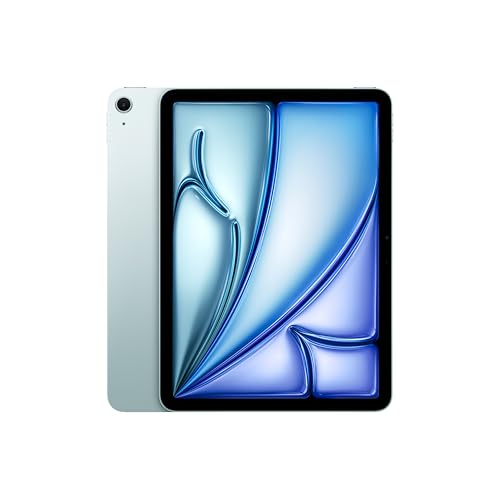
Different category, different argument. The iPad needs no computer, weighs nothing, works on a train, and runs Procreate — which for a one-time purchase does more than most desktop painting software. The Liquid Retina display covers P3 wide color and is fully laminated, so parallax is minimal.
The honest limitation is that it is not a full desktop. If your workflow depends on Photoshop actions, large layered files, or a specific plug-in, a pen display attached to a real computer is still the more capable setup. If your workflow is “draw, export, post,” the iPad wins comfortably.
- 11 in Liquid Retina, P3 wide color, True Tone, low reflectivity
- M4 chip, all-day battery, up to 1 TB storage
- Completely standalone — no computer needed
- Around $815 for the 256 GB Wi-Fi model at the time of writing
Two Pens Worth Adding
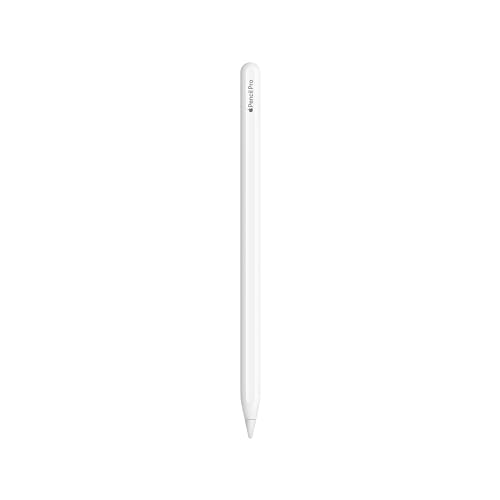
Apple Pencil Pro. The iPad is only half a drawing tablet without it, and it is sold separately. The feature that matters most for drawing is barrel roll — rotating the pen rotates the brush, which is how a real flat brush or chisel-tip marker behaves. Squeeze brings up tools, and haptics let you feel shapes snap. Check compatibility carefully: the Pro works with iPad Air M2, M3 and M4, iPad Pro M4 and M5, and iPad mini A17 Pro, and not with older models.

Wacom Art Pen 2. The same idea for Wacom hardware — 360 degree barrel rotation, so supported brushes respond to how you twist the pen. If you do calligraphy, brush lettering or anything with a chisel edge, this changes what is possible rather than just making it more comfortable. Around $100, and it currently works with Cintiq DTK168, DTK246, DTH246 and Intuos Pro PTK470, PTK670 and PTK870.
How to Choose in Three Questions
- Do you already own a capable computer? No — get the iPad Air. Yes — a pen display gives you far more screen for the money.
- Do you need to draw away from a desk? Yes — iPad. No — everything else is cheaper and better at home.
- Does your neck already hurt? Genuinely consider the screenless Intuos Pro. It is the option nobody recommends and a lot of full-time illustrators quietly use.
What Goes With It
Digital work still has to leave the screen eventually. If you sell prints of it, the printer guide explains why pigment ink decides how long those prints last. If you also work traditionally and want to reproduce originals, see scanners for artwork. Judging color on a screen depends heavily on the light in the room, covered in art studio lighting, and the desk it all sits on is in setting up a small home art studio.
Frequently Asked Questions
Do drawing tablets need a computer?
Pen displays like the Wacom Cintiq, Huion Kamvas and XPPen Artist do — they are monitors you draw on and have no operating system of their own. An iPad is standalone and needs nothing else. This is the most expensive mistake people make when buying their first tablet.
What is parallax on a drawing tablet?
The visible gap between where your pen tip is and where the line appears, caused by the thickness of glass between the drawing surface and the pixels. Fully laminated displays bond the glass to the panel and largely remove it. It is the single biggest factor in how natural a tablet feels.
Are 16,384 pressure levels better than 8,192?
Not in any way you can feel. No hand controls that many distinct steps and no brush engine renders them separately. Initial activation force and freedom from jitter on slow lines make a real difference; the pressure-level number is a marketing figure.
Is Huion or XPPen as good as Wacom now?
On panels and pen hardware, largely yes, and often at half the price. Wacom’s remaining advantages are driver stability over years of operating system updates, build quality and resale value. For a first or second tablet, Huion and XPPen are genuinely competitive.
Is a screenless tablet still worth buying?
Yes, for three practical reasons: better posture because your head stays up, nothing to scratch or overheat, and much more tablet for the money. The adaptation period is roughly one to two weeks, after which most people stop noticing the disconnect entirely.
What screen size should I get?
Between 15 and 16 inches suits most people. Smaller than 13 in and you constantly zoom and pan; larger than 22 in and you are moving your whole arm to reach the corners. If you paint broadly, go larger; if you do dense line work, prioritize pixel density over size.
The Angle Problem Does Not Disappear When You Go Digital
A tablet lying flat on a desk foreshortens the working surface exactly the way paper does, so proportions drift and your neck takes the load for hours. Most display tablets ship with a stand for this reason, and the angle worth aiming for is the same one drafting tables have used for a century. Our guide to easels and drawing angles explains what each medium needs, and the reasoning carries straight across to a screen. If you are weighing a tablet against other upgrades, our art supplies guide compares them by stage.
Does the color gamut matter if I only post online?
Less than if you print, but it still matters. A display covering close to 100% sRGB shows you roughly what other people’s screens will show. A display well short of that makes you compensate for colors you cannot see, and the work looks wrong everywhere except on your own monitor.
References and Further Reading