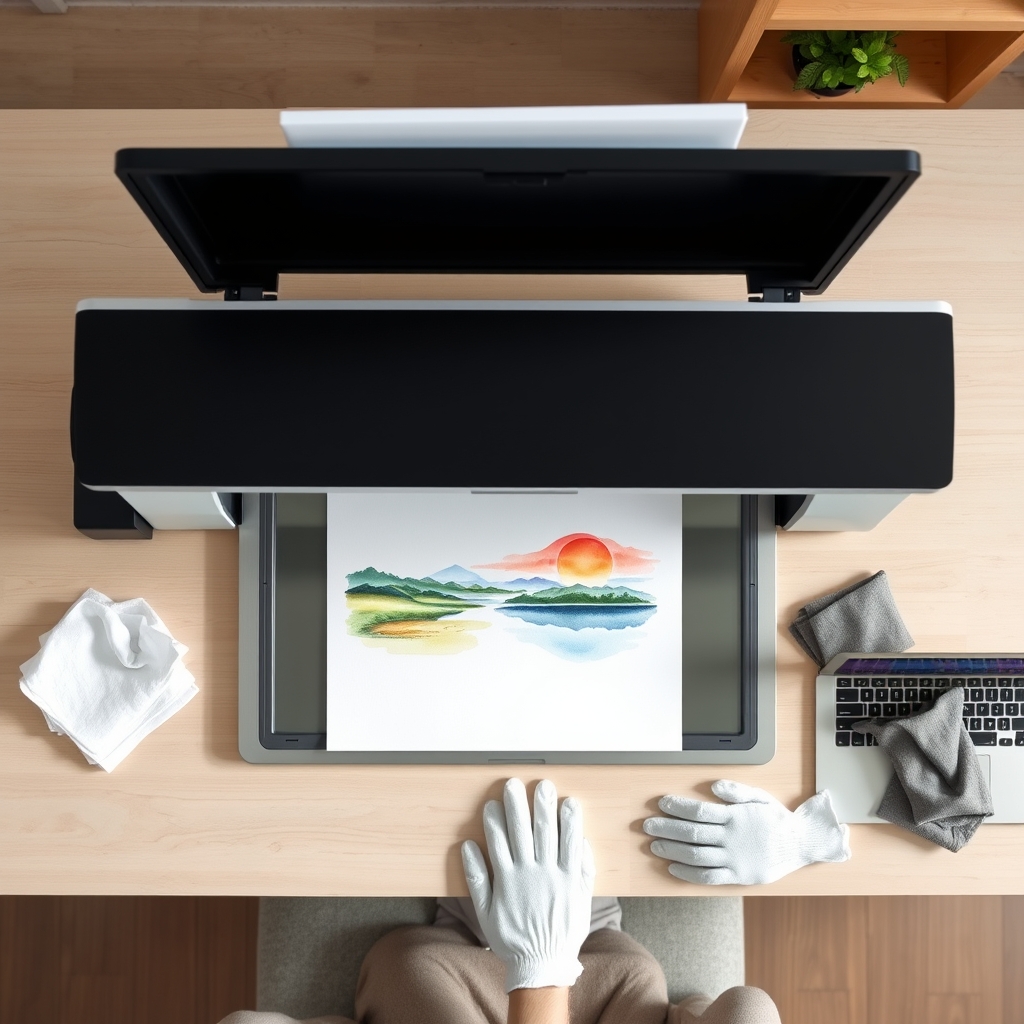
Scan dpi equals 300 multiplied by your print size divided by your original size. Printing an original at the same size needs 300 dpi; printing at double size needs 600 dpi. For artwork on paper, anything above 600 dpi optical is wasted.
Key takeaways
- Use scan dpi = 300 x (print size / original size); 600 dpi covers almost every print seller|Buy for scan area, not resolution, since 6400 dpi exists for 35 mm film and not for paintings|Read optical resolution only, because interpolated dpi is software inventing pixels|Scan flat media like watercolor and ink; photograph anything with real impasto texture|Save a 16-bit TIFF master with auto correction and Digital ICE turned off
Disclosure: GS Art Zone is a participant in the Amazon Services LLC Associates Program. If you buy through a link on this page we may earn a small commission at no extra cost to you. It does not change which scanner we recommend. Prices change constantly, so always check the live price before ordering.
Almost everyone buying a scanner for artwork overpays, and they overpay for the same reason: the big number on the box. A scanner advertised at 6400 dpi is not six times better than one at 1200 dpi for scanning a painting. For reflective artwork on paper, anything above about 600 dpi optical is wasted.
Those very high resolutions exist for one job: scanning 35 mm film and negatives, where a tiny original has to be enlarged enormously. A watercolor on A4 paper is already large. It does not need that.
Here is the formula that actually decides your setting, and it is worth writing on a sticky note:
Scan dpi = 300 × (print size ÷ original size)
Printing an 8 × 10 in original at 8 × 10 in? Scan at 300 dpi. Printing it at double size, 16 × 20 in? Scan at 600 dpi. Printing at triple size? 900 dpi. That is the whole calculation.
The other number to ignore is interpolated resolution. Optical resolution is what the sensor genuinely captures; interpolated resolution is software inventing pixels between the real ones. A listing that advertises 19,200 dpi is quoting interpolation. Read the optical figure only.
Compiled by the GS Art Zone editorial team. Last updated August 2026. Specifications come from manufacturer documentation.
Quick Comparison
| Scanner | Scan area | Optical dpi | Best for |
|---|---|---|---|
| Epson Perfection V600 | 8.5 × 11.7 in | 6400 | Overall pick for artwork |
| Plustek OpticSlim 1680 | 11.7 × 17 in | Tabloid CCD | Large artwork, best value |
| Plustek OpticPro A320E | 12 × 17 in | A3 CCD | A3 originals, batch work |
| Epson Perfection V850 Pro | 8.5 × 11.7 in | 6400, dual lens | Film and archival work |
| Epson Perfection V800 | 8.5 × 11.7 in | 6400, dual lens | V850 alternative |
| Epson DS-50000 | 11.7 × 17 in | CCD, 4-line | High-volume large format |
| Epson Perfection V39 II | 8.5 × 11.7 in | 4800 | Budget, USB powered |
| Canon CanoScan LiDE 400 | 8.5 × 11.7 in | 4800 | Cheapest, slimmest |
1. Epson Perfection V600 — Best Scanner for Artwork Overall

The V600 has been the default recommendation for artists reproducing work at home for years, and it earns it. The scan bed takes originals up to 8.5 × 11.7 in, and Epson rates it for enlargements up to 17 × 22 in — which, using the formula above, is exactly the range most print sellers need.
It uses ReadyScan LED, so there is no lamp warm-up. That sounds like a minor convenience until you are scanning thirty pieces in an afternoon, at which point it changes the job considerably. The built-in transparency unit also handles film, if you ever want to digitize old negatives.
- 6400 × 9600 dpi optical, enlargements to 17 × 22 in
- Originals up to 8.5 × 11.7 in
- ReadyScan LED, no warm-up time
- Built-in transparency unit for 35 mm and medium format film
- Digital ICE for dust and scratch removal on film
Price warning: this model is frequently listed on Amazon by third-party sellers at several times its usual retail price. Check who the seller is and compare against other retailers before you order. Do not assume the first listing you see is the real price.
2. Plustek OpticSlim 1680 — Best for Large Artwork

This is the one most artists do not know exists, and for a lot of people it is the right answer. An 11.7 × 17 in bed means an A3 painting goes down in one pass — no stitching, no seams, no wrestling with alignment. At around $379 it costs less than most 17 in printers.
It is also genuinely fast: Plustek quotes about 3 seconds for a tabloid page at 300 dpi in grayscale and about 5 seconds in color. If you work at A3 and have been photographing your work instead, this fixes that entirely.
- 11.7 × 17 in tabloid scan area, A3 in a single pass
- Around 3 to 5 seconds per tabloid page at 300 dpi
- Four configurable one-touch buttons
- TWAIN and ICA compliant, Windows and macOS
- Approximately $379 at the time of writing
3. Plustek OpticPro A320E — A3 With Batch Scanning
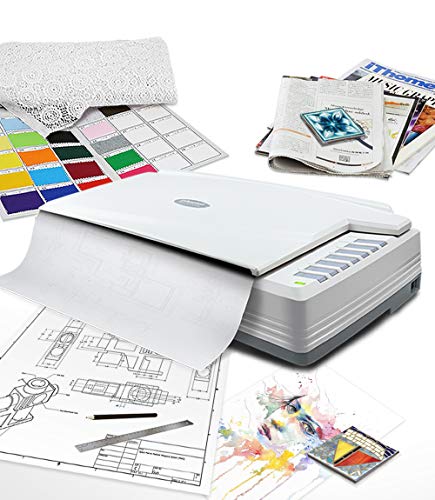
A 12 × 17 in bed, slightly larger than the OpticSlim, with one feature that matters if you produce a lot of small work: batch scanning. Lay several pieces on the glass at once and it separates them into individual files rather than one big scan you then have to cut up.
For anyone making sticker sheets, ACEO cards, bookmarks or small studies in quantity, that single feature saves more time over a year than any resolution spec. Around $649.
- 12 × 17 in scan area, handles A3, maps and bound books
- Batch scanning splits multiple items into separate files
- Scan direct to print, email, folder or FTP
- OCR included, TWAIN and WIA drivers
- Windows, macOS and Linux support
4. Epson Perfection V850 Pro — Best for Film and Archival Work
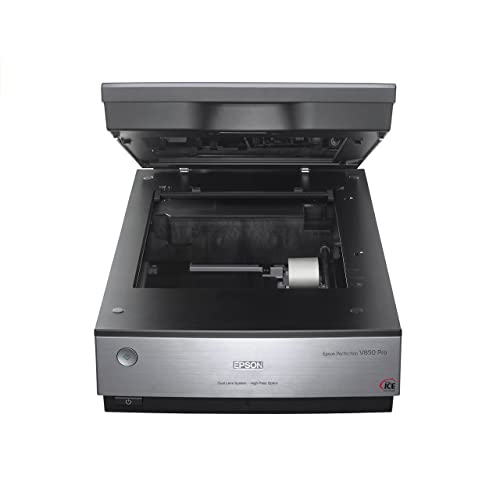
The V850 Pro’s headline feature is a dual lens system that switches between two optical paths depending on what you are scanning, plus a 4.0 Dmax rating for tonal range in deep shadow. Both of those are film features first and artwork features second.
Be honest with yourself about whether you need it. If you are scanning watercolors and drawings, the V600 or a large-format Plustek will serve you better for less money. If you also shoot film, or you are digitizing an archive where shadow separation genuinely matters, this is the machine.
- 6400 dpi optical with dual lens system
- 4.0 Dmax for smooth gradation in dark tones
- Extensive film holders included
- Note that Epson lists older operating system support, so check current driver availability for your OS
5. Epson Perfection V800 — The V850’s Quieter Sibling

Same 6400 dpi optical resolution, same dual lens system, same 4.0 Dmax, fewer bundled extras. If you have decided you want the V850’s optics and you can find the V800 meaningfully cheaper, the image quality difference on reflective artwork will be negligible.
6. Epson DS-50000 — High-Volume Large Format

An 11.7 × 17 in flatbed built for constant use, with a four-line CCD sensor and a three-year warranty that includes next-business-day replacement. That warranty is the reason to buy it — if scanning is part of how you earn, a dead scanner is lost income, not an inconvenience.
At around $1,360 it only makes sense at real volume. For most individual artists the Plustek OpticSlim does the same size for a quarter of the money.
7. Epson Perfection V39 II — Best Budget Option

Around $120, 4800 dpi optical, USB powered so there is no separate power brick. The feature worth knowing about is stitching: Epson ScanSmart can join oversized scans together, which means you can scan an A3 piece in two overlapping halves and merge them.
The removable high-rise lid also lets you scan from books and sketchbooks without cracking the spine flat, which matters more than you would think if your work lives in bound sketchbooks.
- 4800 dpi optical, comfortably enough for artwork
- USB powered, single cable, genuinely portable
- ScanSmart stitching for oversized originals
- Removable high-rise lid for books and sketchbooks
- Around $120 at the time of writing
8. Canon CanoScan LiDE 400 — Cheapest Way to Start

Under $100, 4800 × 4800 dpi optical, and only 0.4 in thick — it stands upright against a wall when you are not using it. A single USB-C cable carries both data and power, and Canon quotes scans in as fast as 8 seconds.
If you are not sure scanning your work will change anything for you, buy this, scan for a month, and find out. It is the least expensive way to answer the question honestly.
Scanner or Camera? The Honest Answer
A flatbed scanner beats a camera on two things that are very hard to fix later: perfectly even illumination across the whole surface, and no lens distortion or keystone. Photograph a painting slightly off-axis and the rectangle becomes a trapezoid; every straight edge in the work is now subtly wrong.
But a scanner has one real weakness. Its light source travels almost parallel to the glass, so heavy texture, impasto and thick paint scan badly — raised areas cast hard little shadows in one direction and the surface looks strange. For thickly worked acrylic or oil, a camera with two lights at 45 degrees is the better tool.
Rule of thumb: flat media on paper — watercolor, ink, pencil, gouache, marker — scan it. Anything with real physical relief — photograph it.
Settings That Actually Matter
- Scan in 16-bit, not 8-bit. It gives you far more headroom when you correct color afterwards, and you convert down at the end.
- Save a TIFF master, export JPEGs from it. JPEG loses a little every time it is re-saved; TIFF does not.
- Turn off auto correction, sharpening and Digital ICE for artwork. ICE is built for film dust and scratches, and on real paper texture it can read the tooth as a defect and soften it.
- Scan in Adobe RGB if your software allows it, since sRGB clips saturated colors that pigment printers can actually reproduce.
- Clean the glass every session. One hair scanned at 600 dpi is a visible line on every print you sell from that file.
What Goes With It
Scanning is the first half of the job. The second half is output, covered in our guide to the best printers for selling art prints from home. Judging the color of a scan accurately depends on the light you are working under, which is art studio lighting, and where the whole workflow lives is setting up a small home art studio. If you would rather skip scanning altogether by working digitally, see the drawing tablet comparison.
Frequently Asked Questions
What dpi should I scan artwork at?
Use the formula: scan dpi equals 300 multiplied by your print size divided by your original size. Printing at the same size as the original means 300 dpi; printing at double size means 600 dpi. For most artists selling prints, 600 dpi covers everything they will ever need.
Is 6400 dpi worth paying for?
Not for paintings and drawings. That resolution exists for 35 mm film, where a very small original is enlarged many times over. For reflective artwork on paper you are unlikely ever to use more than 600 to 1200 dpi, so buy for scan area instead.
How do I scan artwork bigger than the scanner bed?
Scan it in two or more overlapping passes and stitch them together. Keep the scanner settings identical between passes, overlap by at least an inch, and merge in Epson ScanSmart or Photoshop Photomerge. Or buy an 11.7 × 17 in flatbed and avoid the problem entirely.
Why does my scan look flatter than the original?
Two usual causes. Auto correction is being applied and is compressing your tonal range, so turn it off. Or you are viewing the scan on an uncalibrated screen. Scan in 16-bit with all automatic adjustments disabled, then correct manually against the original held next to the monitor.
Can I use my phone instead?
For social media, yes. For anything you sell as a print, no. Phone cameras apply heavy processing, sharpening and color shifts that you cannot fully undo, and getting even lighting free-hand is very difficult. It is fine for a work-in-progress photo and wrong for a master file.
Should I scan in JPEG or TIFF?
Scan to TIFF and keep that as your master, then export JPEGs from it for each use. JPEG discards a little information every time it is saved, so a JPEG that has been opened, edited and re-saved several times is measurably worse than the one you started with.
What You Scan Matters as Much as How
A scanner can only record what is on the sheet. The granulation, the soft blooms and the lifted highlights that make a watercolor worth reproducing all come from cotton paper holding water long enough for those effects to form; on absorbent cellulose there is simply less texture to capture. If your scans look flat before you blame the hardware, read what actually changes between watercolor papers. A scanner is a stage-three purchase; our art supplies guide sets out what comes before it.
References and Further Reading